
Roles & access for the agency team
Roles & access for the agency team
Three roles, one rule: nobody gets more access than their job needs — especially the client’s own staff
Sooner or later the client asks the question you should be hoping for: “Can my sales guys answer the chats themselves?” The answer is yes — and it’s safe, because Chatfuel’s roles let you put the client’s people inside their company without giving them any way to break what you built. This page is how to set that up, and how to slice access inside your own agency while you’re at it.

The three roles
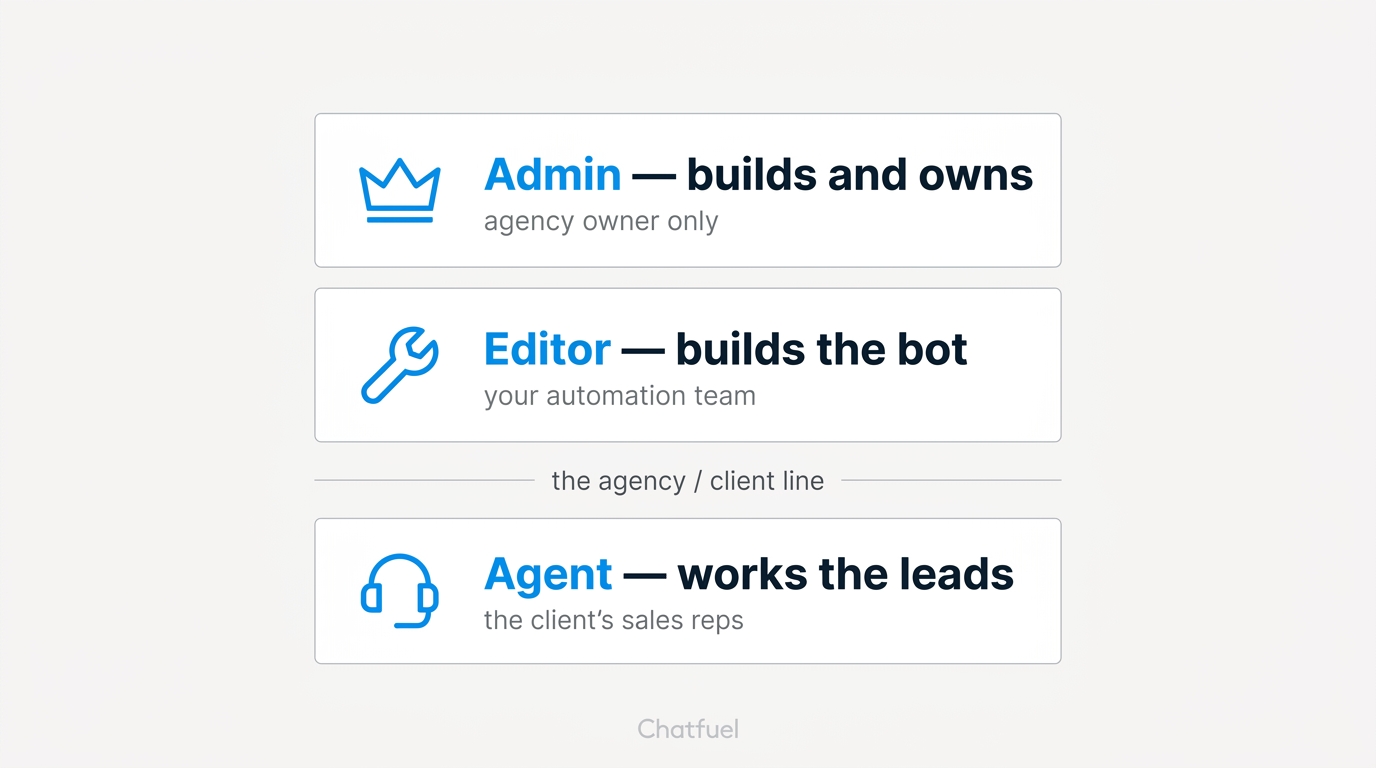
Every teammate in a company has one of three roles:
The pattern to notice: the roles split along the line between building the machine and operating inside it. Admins and Editors build; Agents work the output. That line is exactly where agency work and client work divide.
How to map roles to real people
Admin — you, and almost nobody else. The agency owner or the account lead. Admin sees billing and can change anything, so keep it to one or two people on your side. The client doesn’t need it, and neither does most of your team.
Editor — whoever builds the bots. Your automation person gets Editor in every client company they work on: full power over the AI and the flows, no access to account settings or billing. If something needs changing in the client’s funnel, this is the role that changes it.
Agent — the client’s team. This is the role that makes the client relationship work. Their sales reps and support staff get Agent in their company: they answer handoffs from the AI, work the leads pipeline, manage contacts — and they physically cannot edit an automation, reword an AI instruction, or wander into settings. Your build stays yours; their customers stay theirs. It’s also the right role for a project manager on the client’s side who wants to watch the pipeline.
Combined with the one-client-one-company structure, this gives you the full grid: your core team exists in every client’s company, the client’s people exist only in their own, and every one of them sees exactly the interface their role allows.
Inviting a teammate
Invites work through role-specific links, and they take a minute:
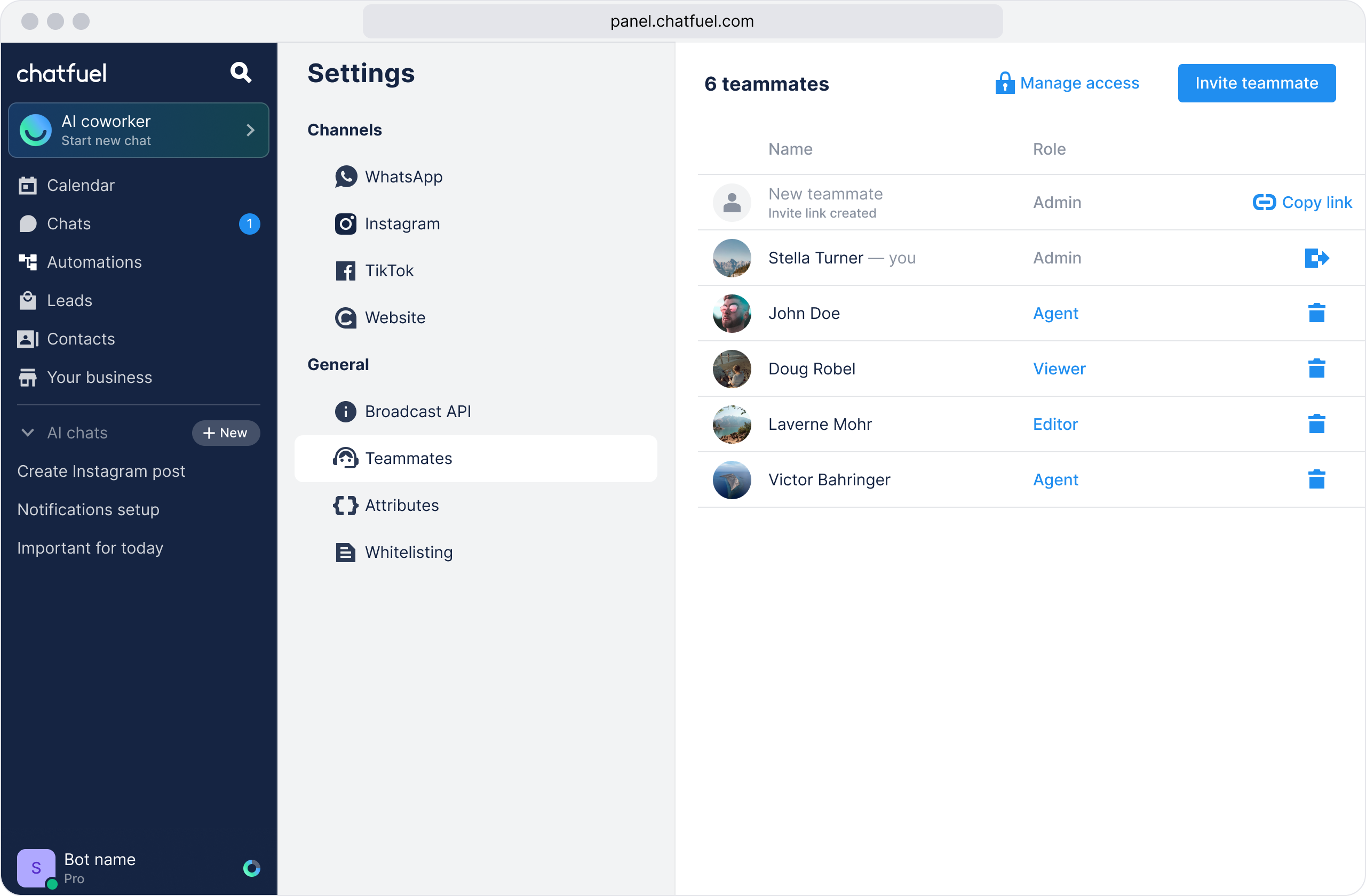
Open Teammates
In the client’s company, go to Settings → Teammates. Make sure you’re in the right company first — invites are per company.
One link, one role
Each generated link is tied to the role you picked. Inviting an Editor and two Agents means generating two different links — don’t reuse the Agent link for someone who needs to build. And note this is one of the few tasks the AI Co-Worker won’t do for you: invites and role changes happen in Settings, by hand, though the Co-Worker can tell you who’s already on the team.
Teammates are unlimited on every plan, so there’s no cost math to do before adding the client’s entire sales floor. If access ever needs to end — someone leaves your agency, or the client’s — remove them from the same Teammates screen, company by company.
The habit that keeps this clean
Decide the role from the job, not from seniority or trust. The client’s CEO who “just wants to see everything” gets Agent, not Admin — they can watch every chat and every lead, which is what they actually wanted. The freelancer helping you build one funnel gets Editor in one company, not three. Access that matches the job is easy to grant, easy to explain, and easy to revoke.