
Phone number verification
The number is verified in minutes — it’s the client’s Meta business verification that decides how far the ads can scale
The phone number itself gets verified during the connection — a code by SMS or call, done in a minute. What this page is really about is the verification that agencies actually lose launches to: Meta business verification of the client’s business portfolio. It’s a document review, it caps the channel until it’s done, and it needs paperwork only the client can provide — which is exactly why it belongs in your onboarding checklist, not in your launch-week panic.
Why it decides your ad budget
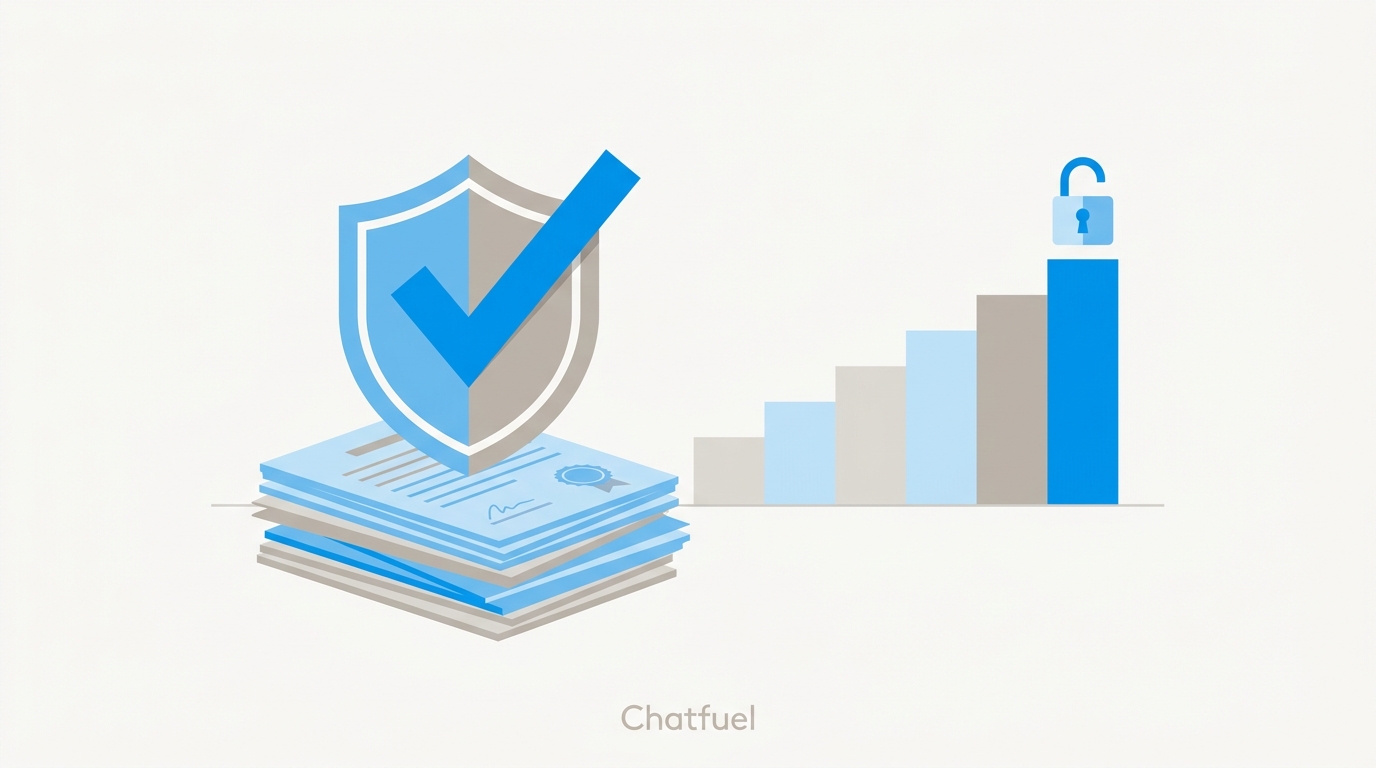
An unverified business is throttled at 250 unique conversations per day — and unverified accounts get banned more easily, with some unable to send messages at all. Verified, the limit scales automatically with quality and volume: 1K → 10K → 100K → unlimited customers per day.
Now do the media math: a click-to-WhatsApp campaign that produces 300 conversations a day hits the unverified cap before lunch. The ads keep spending; the bot stops answering new people. Verification is a launch prerequisite, not an optimization — start it the day the number is connected.
This is not the green checkmark
Business verification unlocks messaging limits. It does not add any badge to the client’s profile — the green checkmark (Official Business Account) is a separate program that requires business verification but isn’t granted by it. Don’t promise the client a checkmark out of this process.
Submitting verification from Chatfuel
Chatfuel is a Meta Solution Partner and submits the verification for you, from inside the client’s company:
Open the verification flow
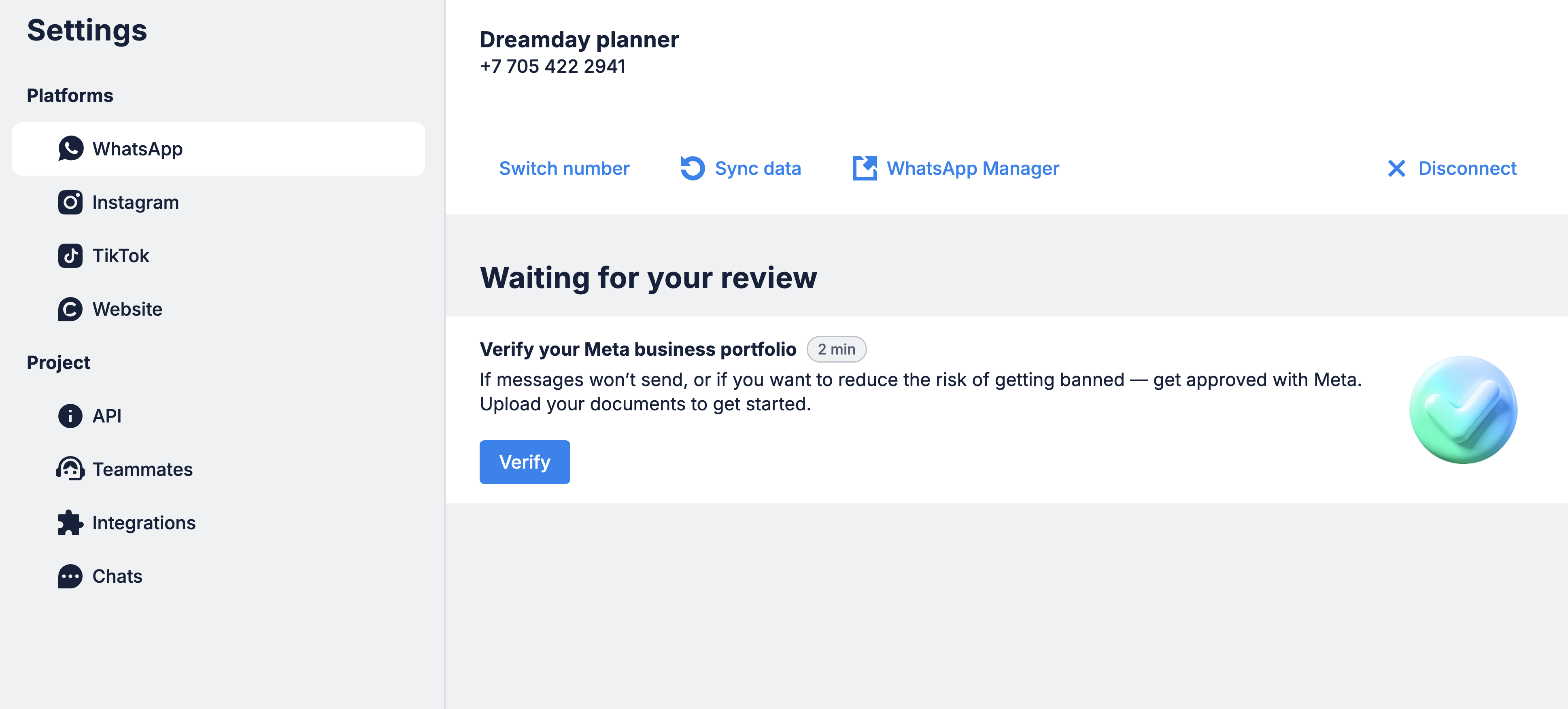
In the client’s company, go to Settings → WhatsApp and click Verify under “Verify your Meta business portfolio”.
Upload the client’s documents
Accepted types: a government tax document, a business registration or license, articles of incorporation, or a business bank statement. More is better — but only from this list; a passport or driver’s license gets rejected, and random extra files don’t help.
Check the legal name — letter by letter
The legal business name on the documents must match the Legal business name in the client’s Meta Business Info settings exactly. A mismatch is the single most common rejection. Check it before submitting, not after the rejection email.
The agency habit that makes this painless: collect the client’s registration document and confirm their legal business name during onboarding, in the same pass as access collection. Chasing a busy client for their articles of incorporation two days before launch is the avoidable version of this problem.
When verification is rejected
If the status is stuck with everything filled in correctly, or the review drags far past the usual window, contact Chatfuel support with a screenshot of the client’s Business Info page — escalation to Meta happens from there.
Where to next
The connection this verification unlocks to full scale.
Connection-stage failures — QR codes, missing portfolios, restricted accounts.
The WABA, the portfolio, and how the pieces fit together.
Add the registration document to the same collection pass.