
Connecting TikTok
Connect the client’s TikTok — but read the restrictions first, before you promise anything
TikTok is where comment volume lives — a client with one viral video can get more raw engagement in a day than their WhatsApp sees in a month. Chatfuel connects to TikTok and automates replies to those comments and DMs. Two restrictions can kill the project before it starts, though — check them before you put TikTok automation in the client’s proposal.
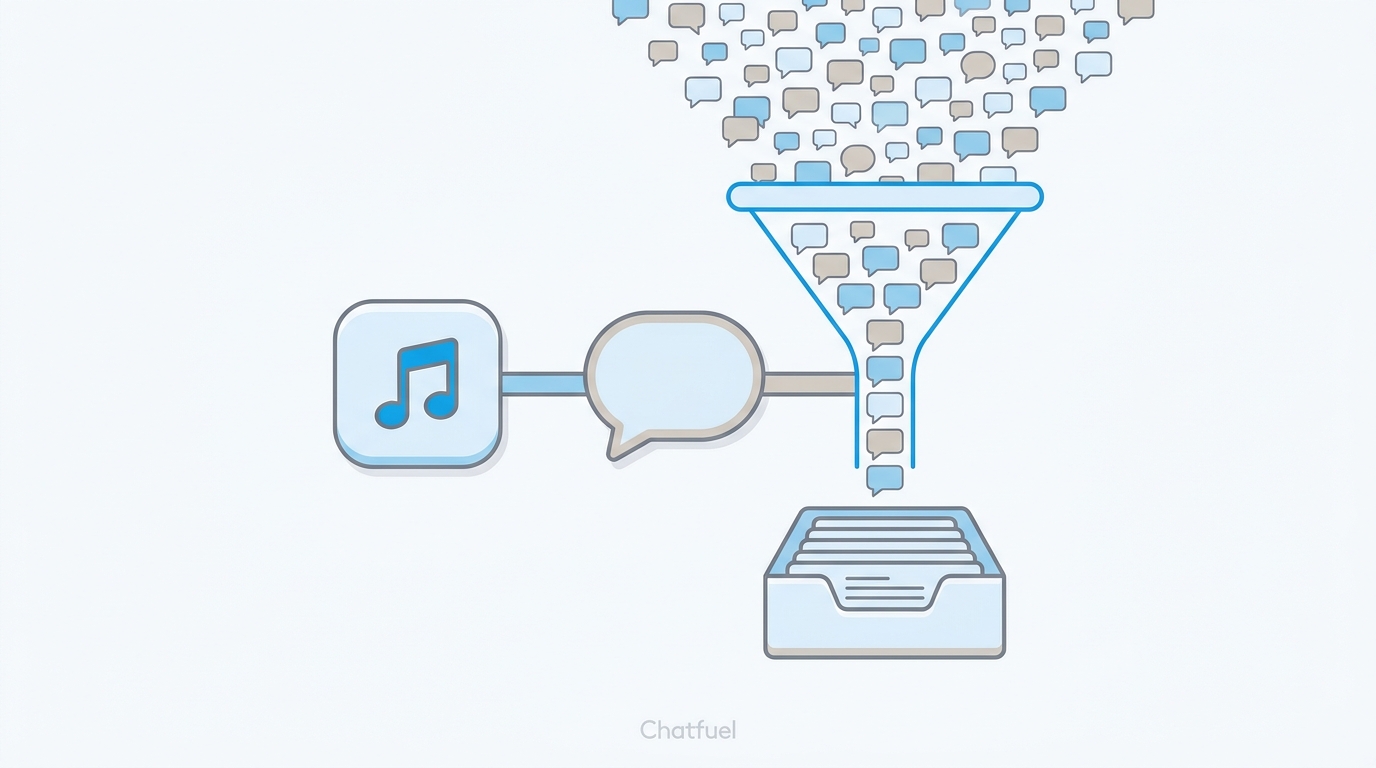
Check before you sell
Two restrictions that aren't negotiable
US accounts can’t connect. If the client’s TikTok account was signed up in the United States, it cannot be connected to Chatfuel at all.
EU contacts are invisible. If a lead’s own TikTok account is from the EU, their messages won’t appear in Leads, Contacts, or Chats — the automation simply won’t see them.
Ask where the client’s account was registered and where their audience is — two questions in the discovery call save an awkward refund conversation later.
Before you click Connect
- Get access to the client’s account first. Same model as every channel: the client brings your agency into their business during onboarding, and from there you connect and run the channel yourself — no client on a call. Collect this access together with everything else you ask for up front.
- You need Admin or Editor in the client’s company in Chatfuel.
- The account must be a TikTok Business account. If it’s still personal, the connection flow walks through the switch — or it can be done in the TikTok app beforehand: Settings and privacy → Account → Switch to Business Account, pick a category, done. Switching doesn’t affect content, followers, or messages.
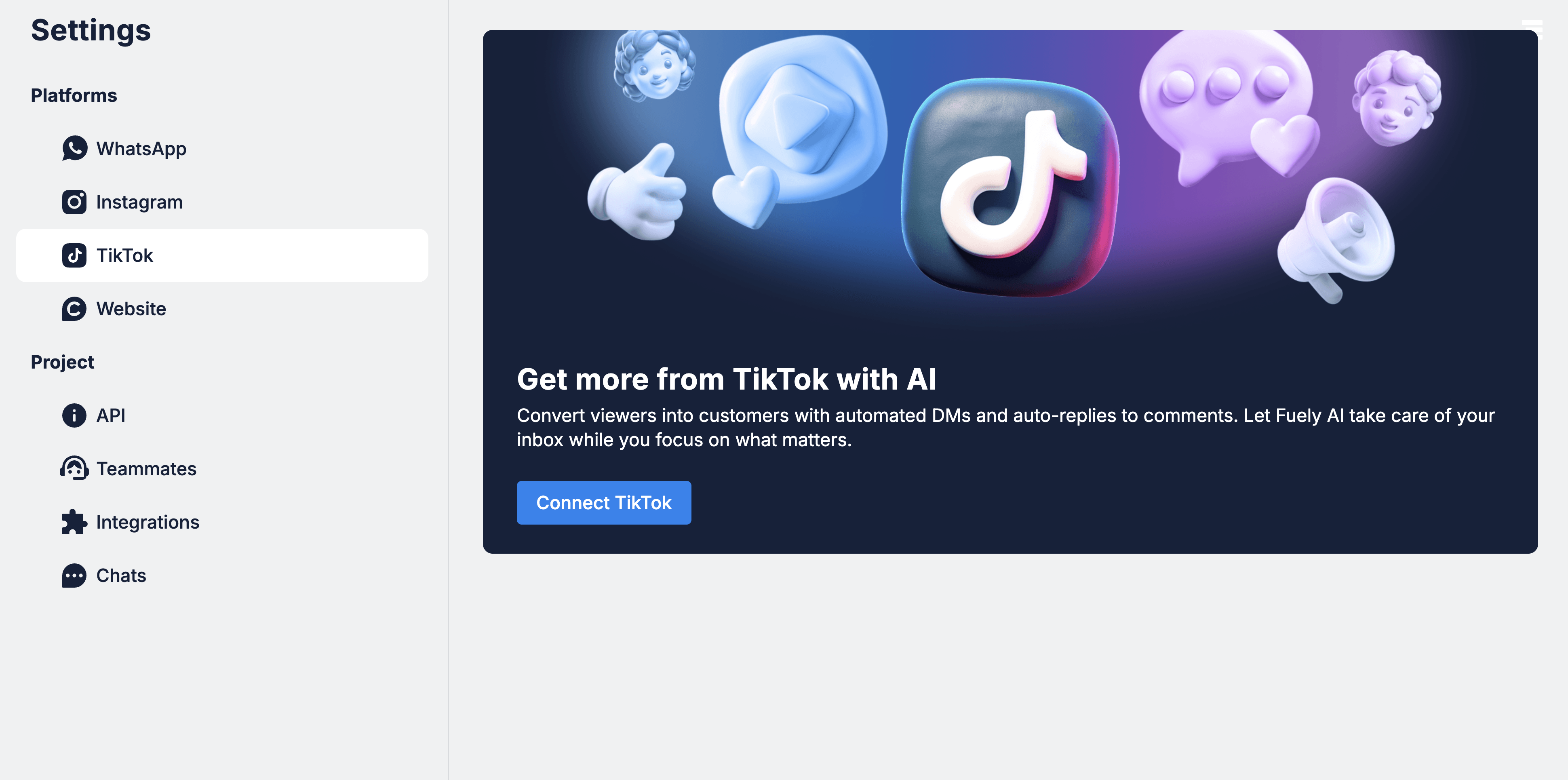
Connecting the account
Where to next
The onboarding checklist that gets your agency into the client’s business.
The other comment-heavy channel.
Catch the leads who land on the client’s website instead.
Where TikTok fits in the ads → bot → lead pipeline.