
Interface tour: where things are located
Interface tour: where things are located
A five-minute map of the Chatfuel dashboard — and the AI Co-Worker that does the configuring for you
The first thing agencies notice about Chatfuel is how little interface there is. No forest of tabs, no block editor with a hundred settings — a handful of day-to-day screens and, at the center, an AI Co-Worker you talk to. That’s deliberate: the setup work you’d normally do by hunting through menus, you do here by describing the outcome. This page is the map, so nobody on your team wastes their first hour looking for a button.
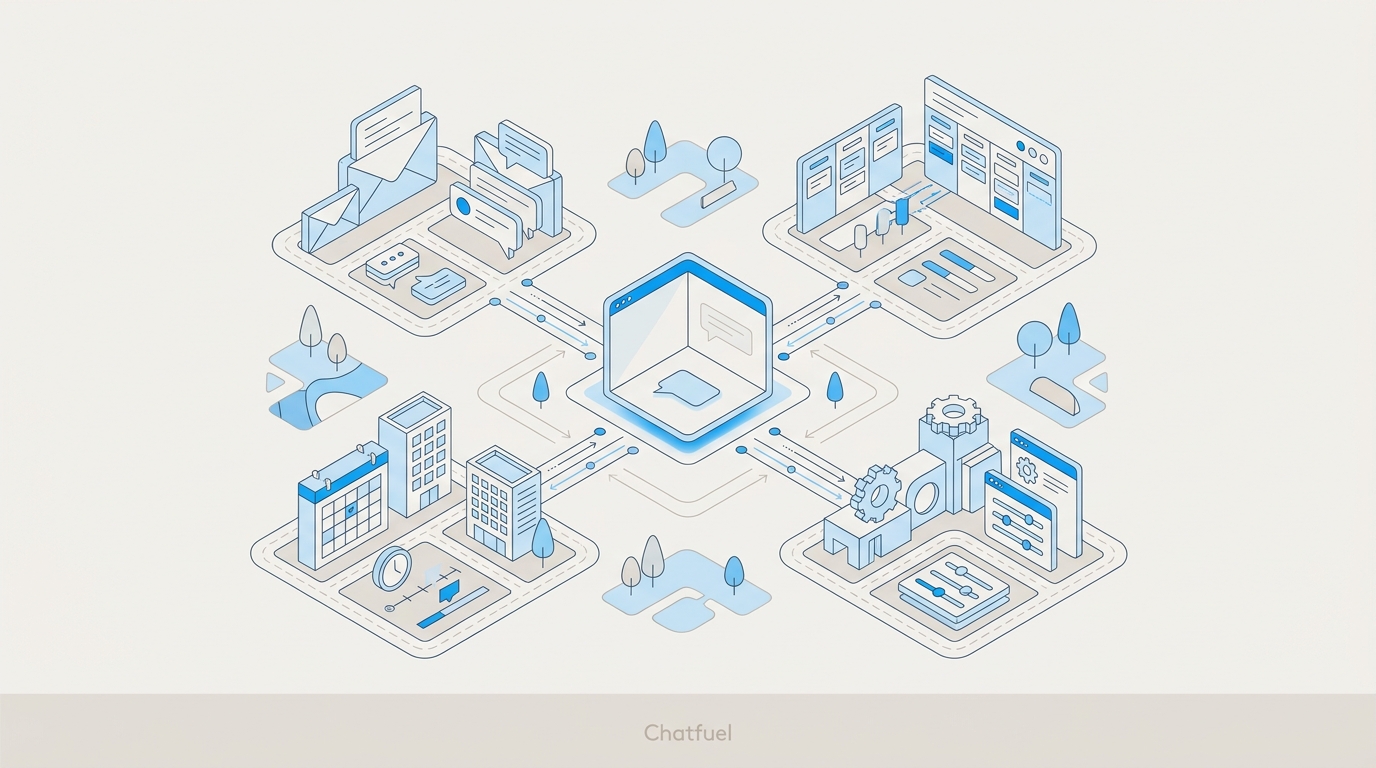
The center: the AI Co-Worker
The Co-Worker is a chat, and it’s the primary way you configure anything in Chatfuel. Instead of building conversation logic screen by screen, you tell it what you want the bot to do, in plain language:
- “Set up auto-replies to Instagram comments on our latest ad”
- “Collect the customer’s budget and phone number before booking”
- “Create a follow-up for leads who go quiet after 24 hours”
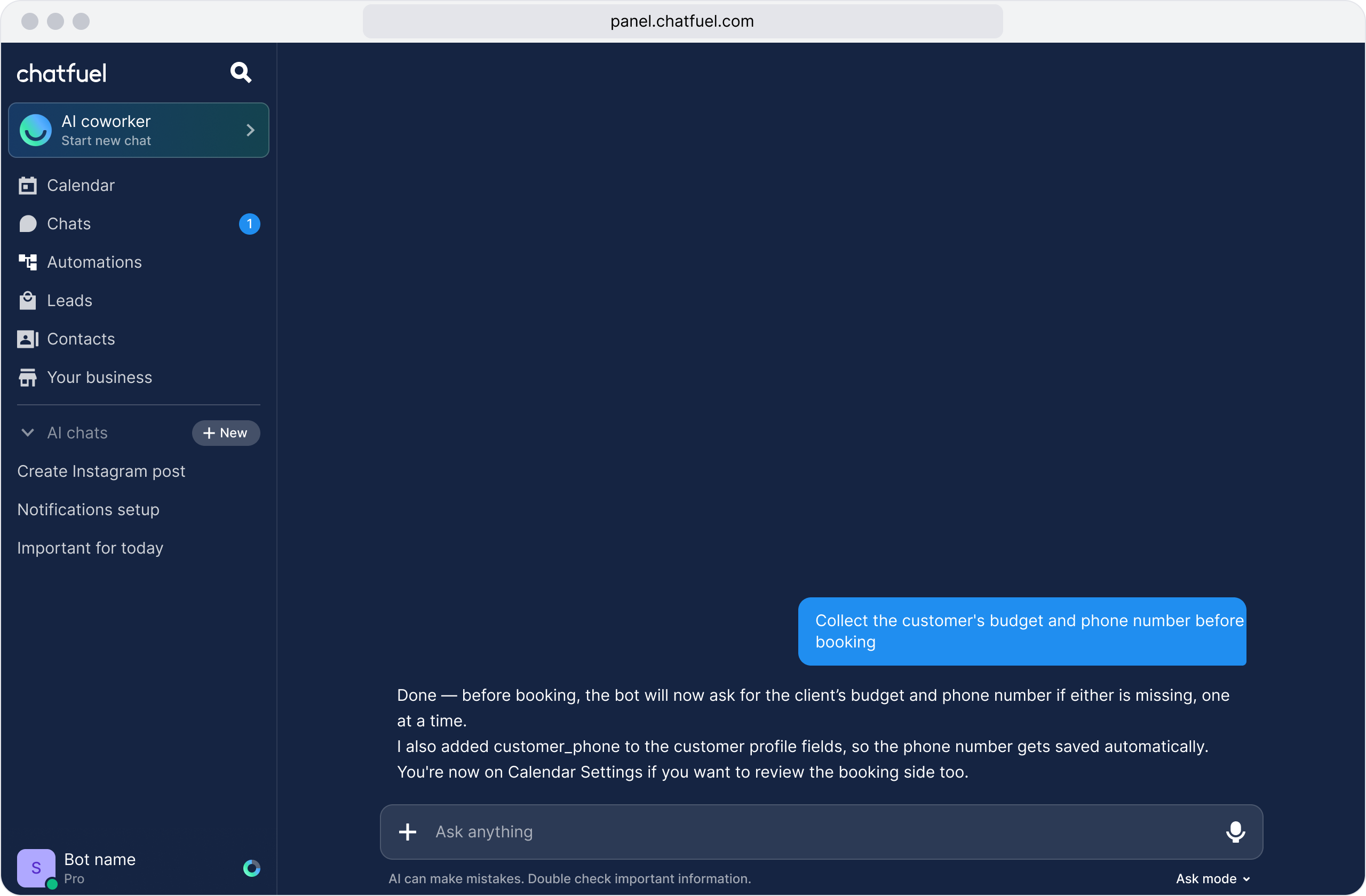
It configures the automation, walks you through anything it needs from you, and can navigate you to any settings screen if you’d rather see it yourself — ask it to open follow-ups, AI tasks, whatever you’re looking for.
One phrasing habit makes it work noticeably better: describe the outcome, not the mechanics. “I want the AI to qualify leads by asking about budget” gets you further than “add a block that sends a question.” The Co-Worker thinks in results, not in blocks.
For an agency this changes the economics of setup: a junior account manager can configure things that used to require a dedicated bot builder. What the AI runs from — modules, tasks, the knowledge base — is covered in Bot modules & blocks.
The day-to-day tabs
Around the Co-Worker sit the screens your team lives in once a client is running:
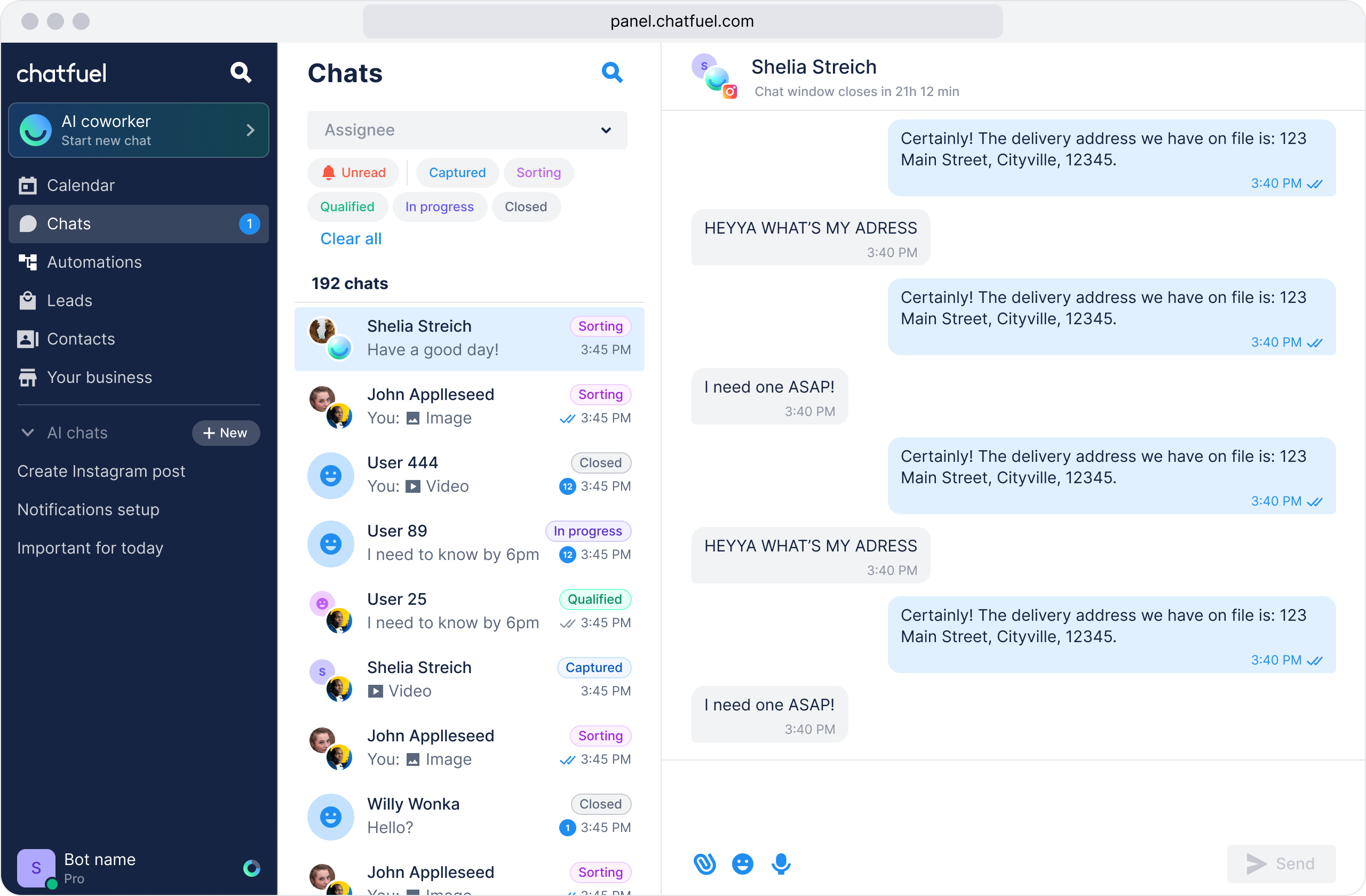
And one control that matters more to you than to any single-business user: your avatar → My Companies, the switcher between client companies. Every tab above shows one client at a time — whichever company you’re currently in. The full logic of that structure is in Agency → clients model.
Where each of your people spends their day
Give each person the role that matches — the interface they see trims itself to what their role can do, which is exactly what you want when the client’s own staff is logging in.
Where to next
What the Co-Worker is actually configuring under the hood.
Match each teammate to the screens they need — and nothing more.
Why every tab shows one client at a time, and how to switch.
Feed the AI the client’s business so the conversations are worth having.