
Connecting the Widget
Put an AI chat on the client’s website — one settings screen, one code snippet, one conversation with their developer
The chat widget is the odd one out in the channel lineup: it doesn’t belong to Meta or TikTok, it lives on the client’s own website. Visitors who land there from ads — or from anywhere — open the chat and start talking, and the same AI that answers the client’s WhatsApp answers them. For you it’s the cheapest channel to add: no portfolio access, no phone numbers, no verification. The only outside dependency is whoever edits the client’s site.
Setting it up
Everything except the last step happens in Chatfuel, in the client’s company:
Brand it for the client
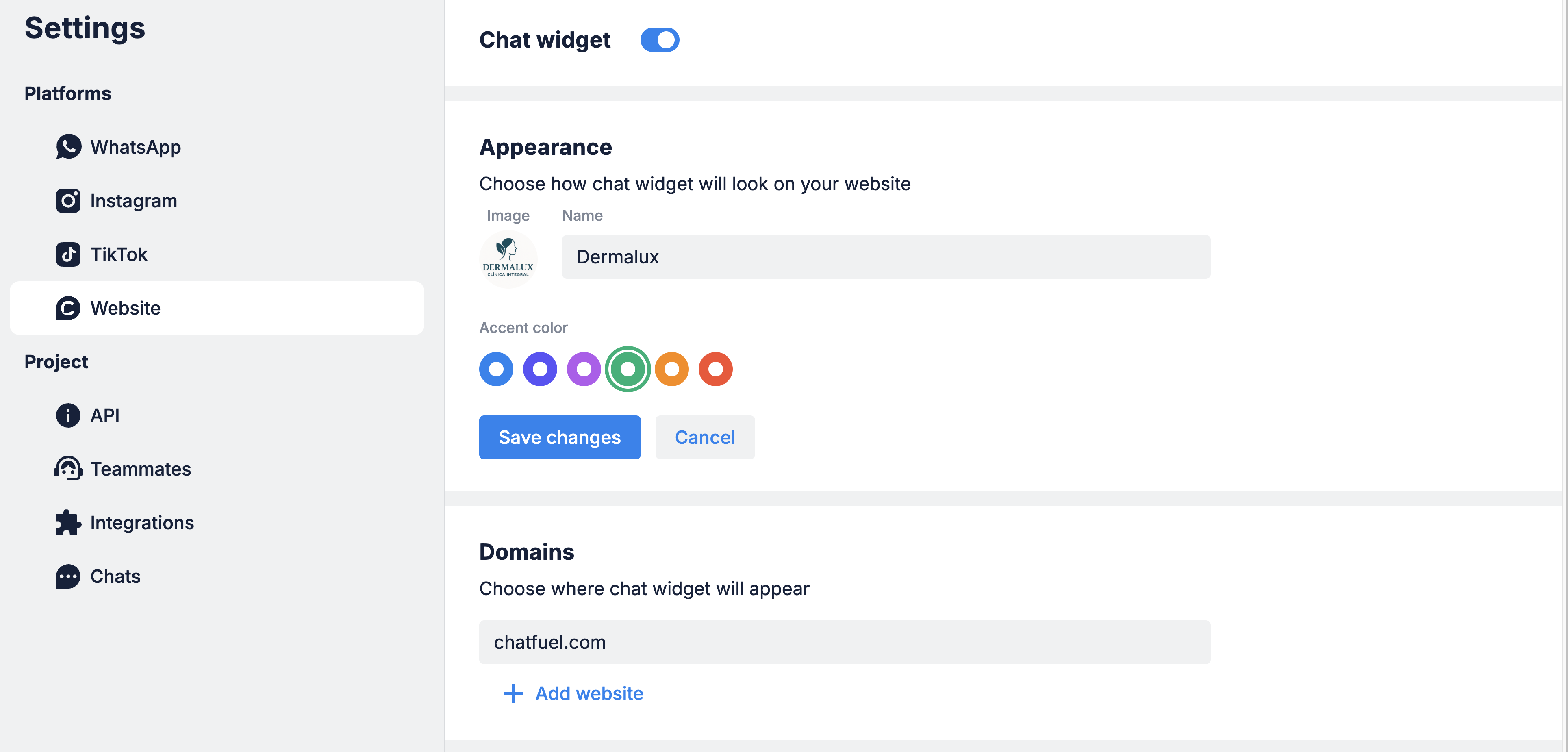
Set the appearance: company name, accent color, and logo — the client’s brand, not your agency’s. This is what visitors see in the chat header.
Send the snippet to the client’s developer
The snippet goes into the site’s HTML — before the </body> tag or inside <head>. If the client has a web developer, hand it over with those two lines of instruction; it’s a five-minute job. Don’t edit a client’s site yourself unless that’s explicitly part of your engagement.
What the AI Co-Worker can and can't do here
The Co-Worker can turn the widget on and set what the AI answers there — just tell it “Turn on the chat widget on my website and make the AI answer there.” What it can’t do is paste the snippet into the site’s HTML or change the appearance settings. Those two you finish by hand.
What to tell the client up front
Two limitations surprise clients if they find out after launch. Say them before:
- The closed widget button shows the Chatfuel icon. The client’s logo appears inside the open chat, but the small button in the corner of the site always uses the default Chatfuel icon — on every plan, no exceptions. If the client asks for a fully white-labeled button, the honest answer is: not currently possible.
- The widget doesn’t greet visitors. There’s no proactive welcome message yet — the AI replies only after the visitor sends their first message. A greeting feature is on the roadmap. Until then, compensate where you can: a friendly AI profile tone, a Knowledge Base that nails the first answer, and branded appearance so the empty chat still looks like the client’s.
Framed early, these are footnotes. Discovered late, they’re a complaint ticket.
Where to next
On the website, the Knowledge Base is the whole pitch — fill it well.
Add the client’s DM channels next.
The strictest channel — check its restrictions first.
Where website chats fit in the ads → bot → lead pipeline.